
Create and edit a coach set
Goal: Maintain shared product information once while finding each coach separately. Use Admin or Editor and synthetic exercise data.
1. Create a two-coach set
- Open Vehicle inventory > New vehicle and choose Set entry.
- Name it Demo-Wagenset, manufacturer Roco, article number DEMO-SET, gauge H0.
- Choose a suitable category, for example Personenwagen, and a vehicle count of 2.
- Select Continue to article data. Review a suggestion or continue without adopting one.
- Under Vehicle details, complete the shared set fields and the Vehicle 1 and Vehicle 2 tabs. Supply suitable subtypes and distinct names or vehicle numbers.
- Review the fields and save the set.
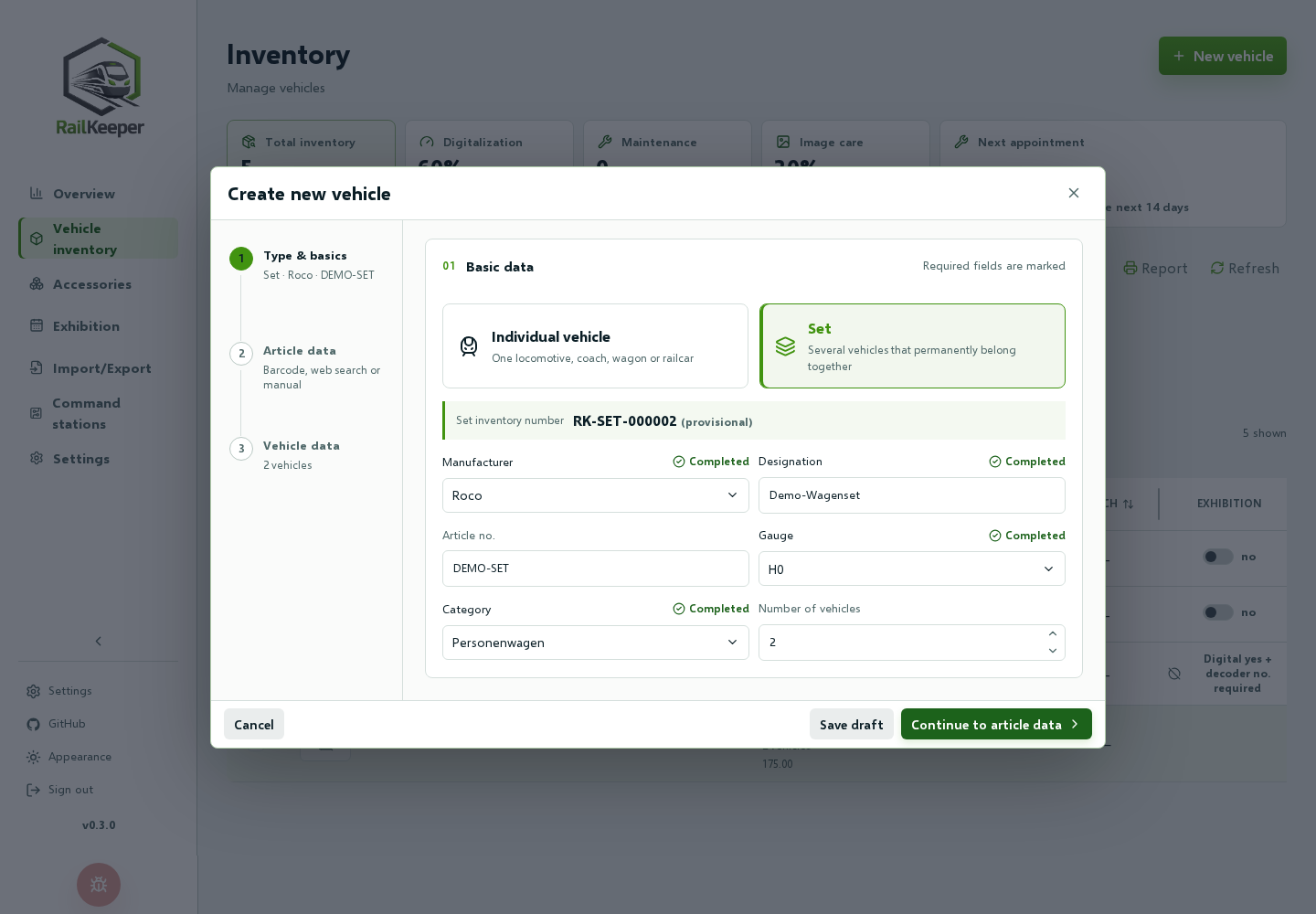
Expected: One set inventory number and two independent vehicle inventory numbers. The active set scheme supplies the set number; members use their matching vehicle schemes.
2. Find members again
Search inventory for Demo-Wagenset and expand its row using the arrow.
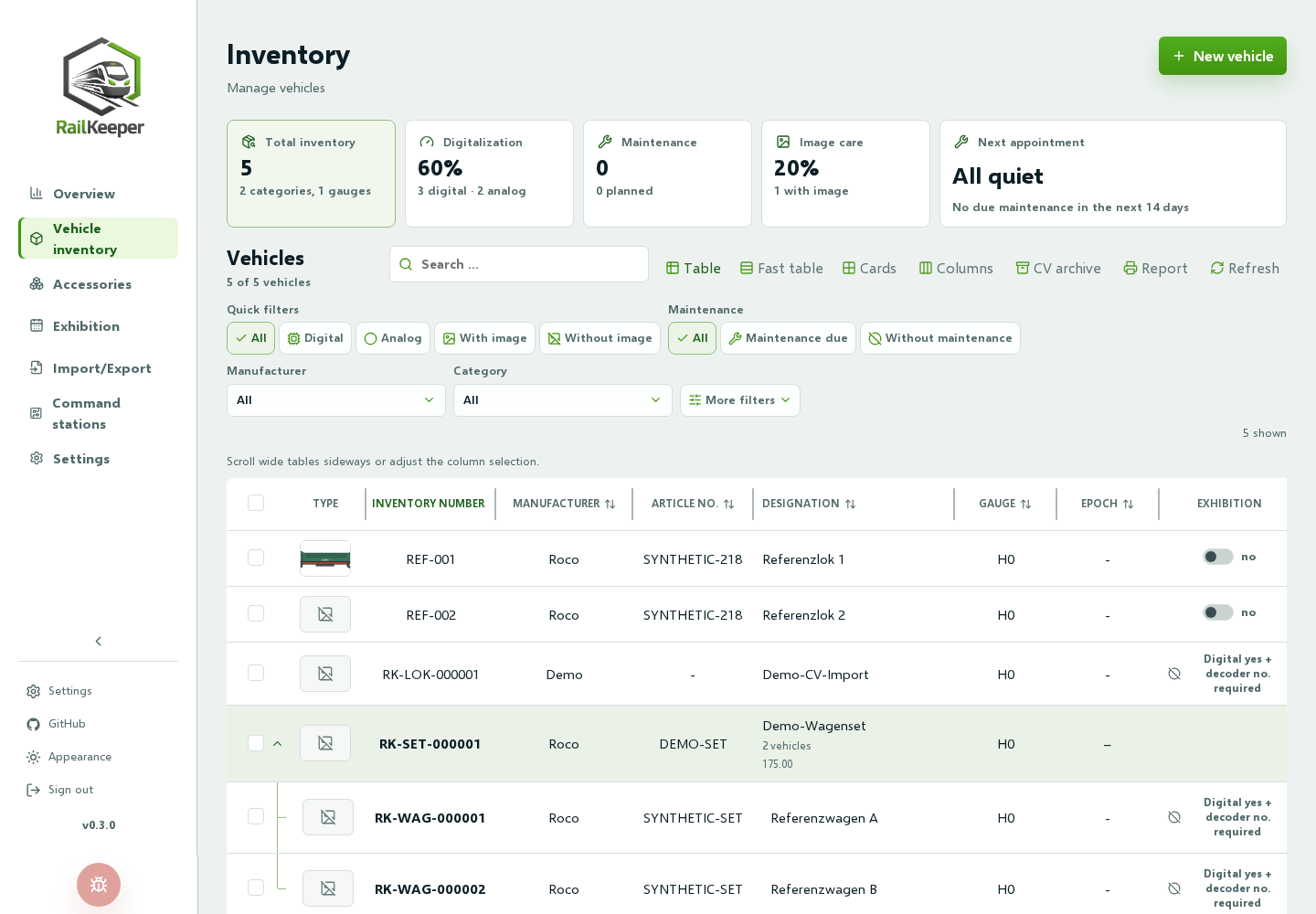
Open an individual coach to inspect its vehicle number or technical details. On narrower views, scroll the action table horizontally if needed.
3. Change shared information
Select Edit on the set row rather than a member row. Change the shared article number from DEMO-SET to DEMO-SET-2.
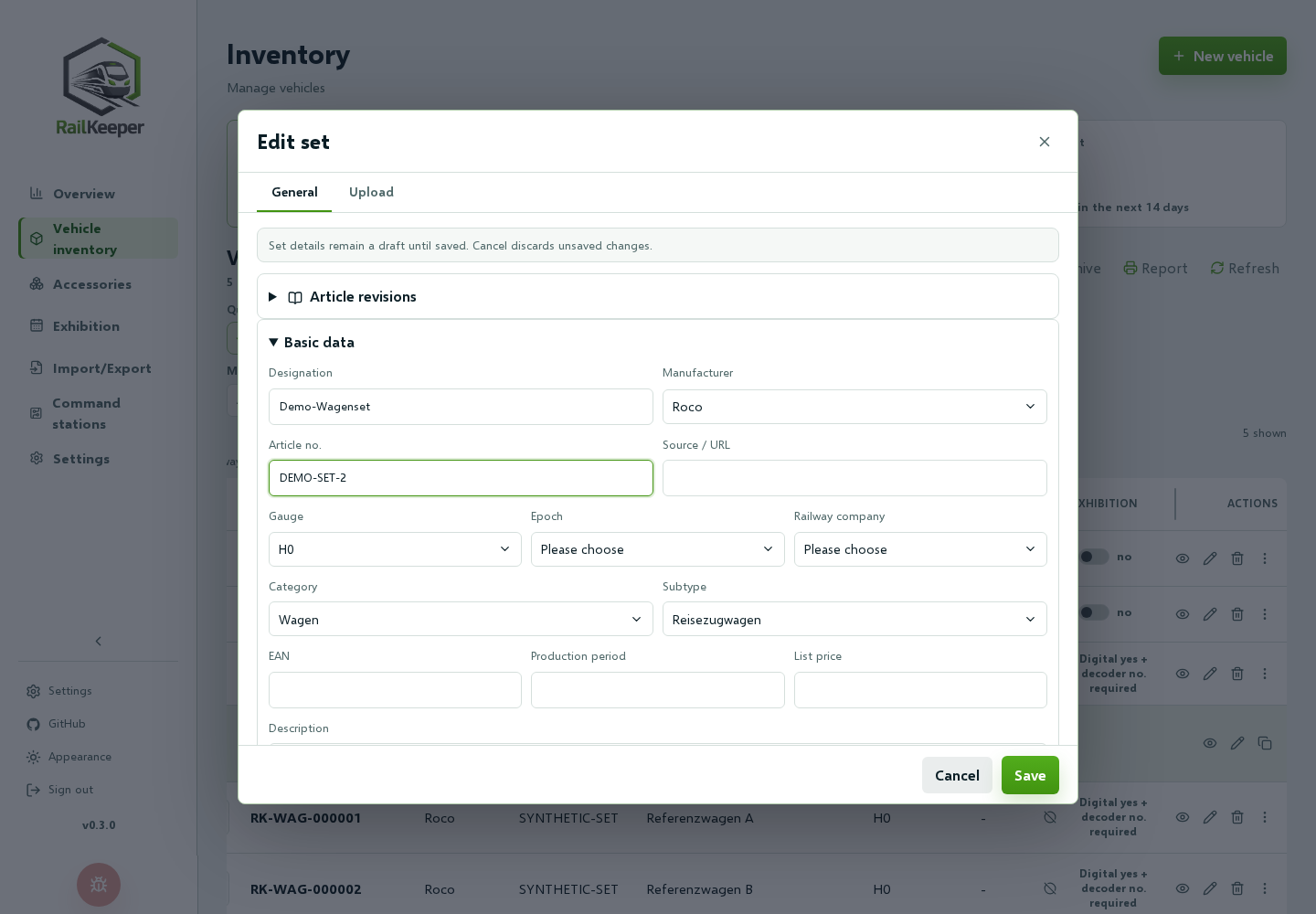
Select Save, reopen the set and check DEMO-SET-2, two members and their distinct vehicle numbers. This shared change was actually saved in the demo.
| Information | Edit at |
|---|---|
| Shared article number, EAN, purchase and packaging | Set |
| Vehicle number or individual technical detail | Individual vehicle |
| Set presentation image | Set dialog Upload |
| Individual coach images | That vehicle's Uploads |
4. Compare and adopt catalog revisions
The set view shows saved set details and their article basis under Article revisions. Select Edit to review a revision or draft a new article in General. Select only the fields you want to adopt now. Individual values are initially protected. Confirmation saves the set's article revision without changing its member vehicles.
Unsaved set details and the article draft survive switching to Upload. If confirmation changes a field you are also editing, the dialog shows both values. Explicitly choose the saved values or your draft before saving set details. Cancel discards unsaved set details; confirmed article and image actions remain saved.
After an unknown save result or a failed refresh, Save remains disabled. Reload the saved view reads the current set without repeating confirmation. Refresh the article comparison afterwards if necessary. Field selection and article revisions.
5. Transfer related data
CSV/JSON transfer can carry set structure, but contains no media and not all vehicle subrecords. For a complete compatible move, use an application backup. Export limits · Practice a restore.