
Practice a safe restore
Goal: Actually restore a backup and inspect its contents. You need Admin and a separate test installation with its own data directory or Docker volume. Restoring replaces that installation's inventory and media. Do not run this exercise on your real collection.
1. Prepare recognizable exercise data
- Start the separate installation and create its own administrator.
- Create the locomotive from the F0/F1/F3 exercise. Apply and save its three functions and 144 CV readings.
- Create a two-coach set, giving three vehicles in total.
- Upload the synthetic locomotive image and add one open maintenance record.
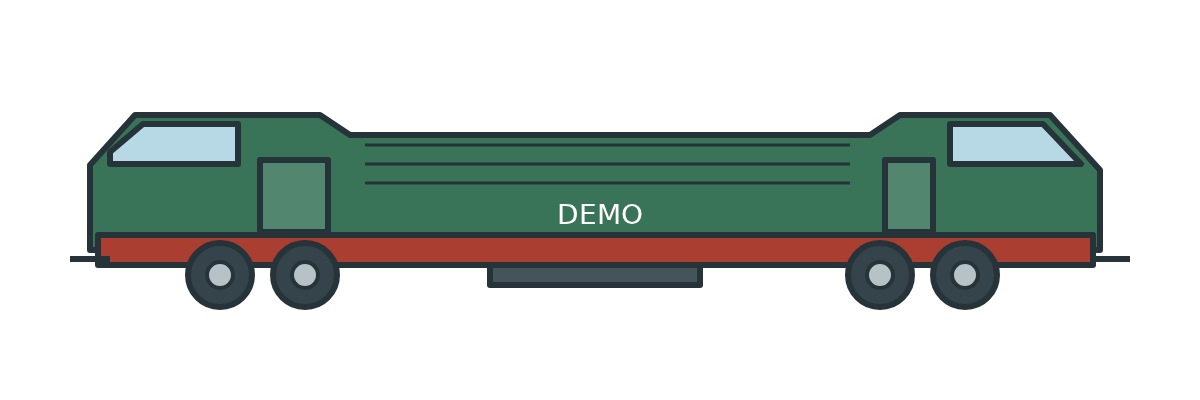
These input files contain no private collection or authentication data. Generate the training backup yourself in RailKeeper. Real backups do not belong in public issues or repositories.
2. Create a backup and record checkpoints
Open Settings > Backup > Create backup and download the JSON. Keep it outside the test data directory. Record:
| Exercise checkpoint | Expected backup contents |
|---|---|
| Vehicles | 3: the locomotive and two set members |
| Set | 1 with two members |
| Locomotive CVs | 144, including original lines and export date |
| Locomotive functions | F0, F1, F3, Continuous and Inverted No, with provenance |
| Media and maintenance | One locomotive picture and one maintenance record |
| Authentication | Local to the installation, not restored from the file |
Master data and other exercise records increase the total row count shown. This total is not your number of vehicles.
After exporting, add another vehicle named AFTER BACKUP. Its disappearance will provide a visible checkpoint for restoring the earlier state.
3. Validate without restoring
Select the downloaded JSON under Restore backup.
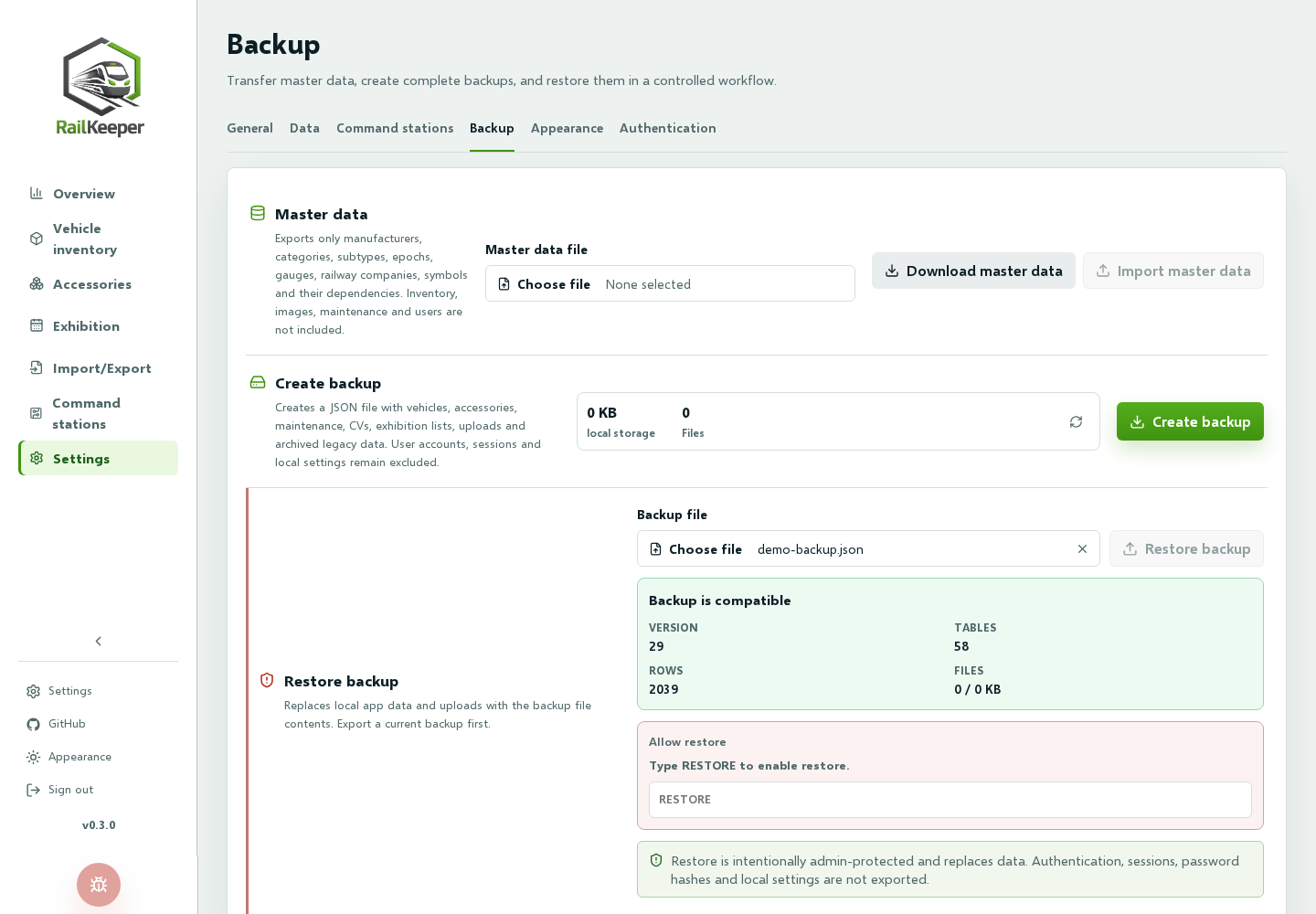
Review compatibility, file count, errors and warnings. The reviewed backup format is version 29. File selection alone does not restore data.
The file count covers separate files in the uploads directory. Originals stored as SQLite blobs belong to the backed-up records. A complete backup containing images and attachments can therefore show 0 files here. Also open the original media on the vehicle after restoring. The current picture sequence includes additional synthetic vehicles beside the exercise locomotive and set.
4. Deliberately confirm restoration
Enter RESTORE, select Restore backup and read the final confirmation.
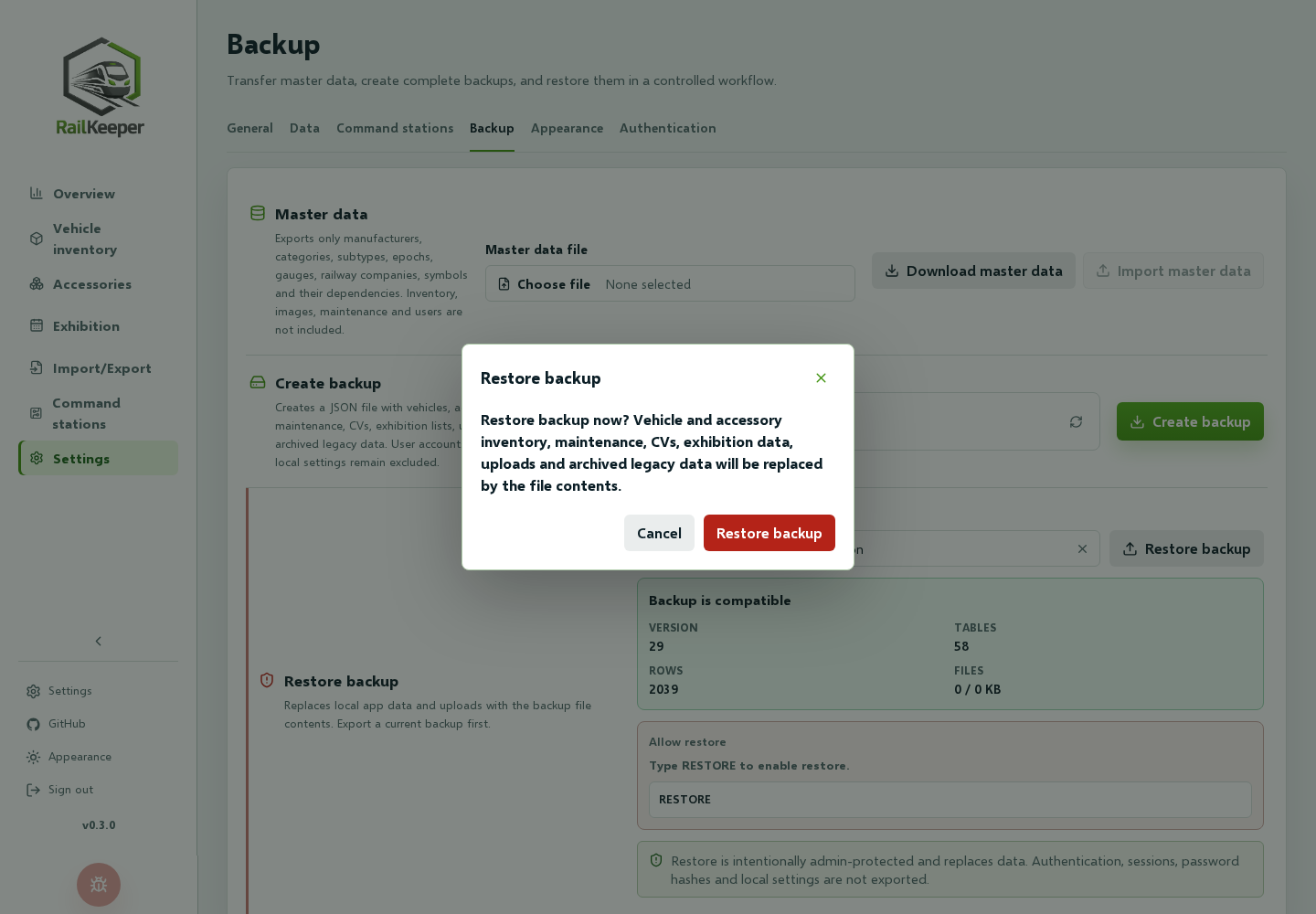
Confirm only in the intended test installation and wait for the result. If a reply is missing, inspect actual data and logs before retrying.
5. Verify the restored state
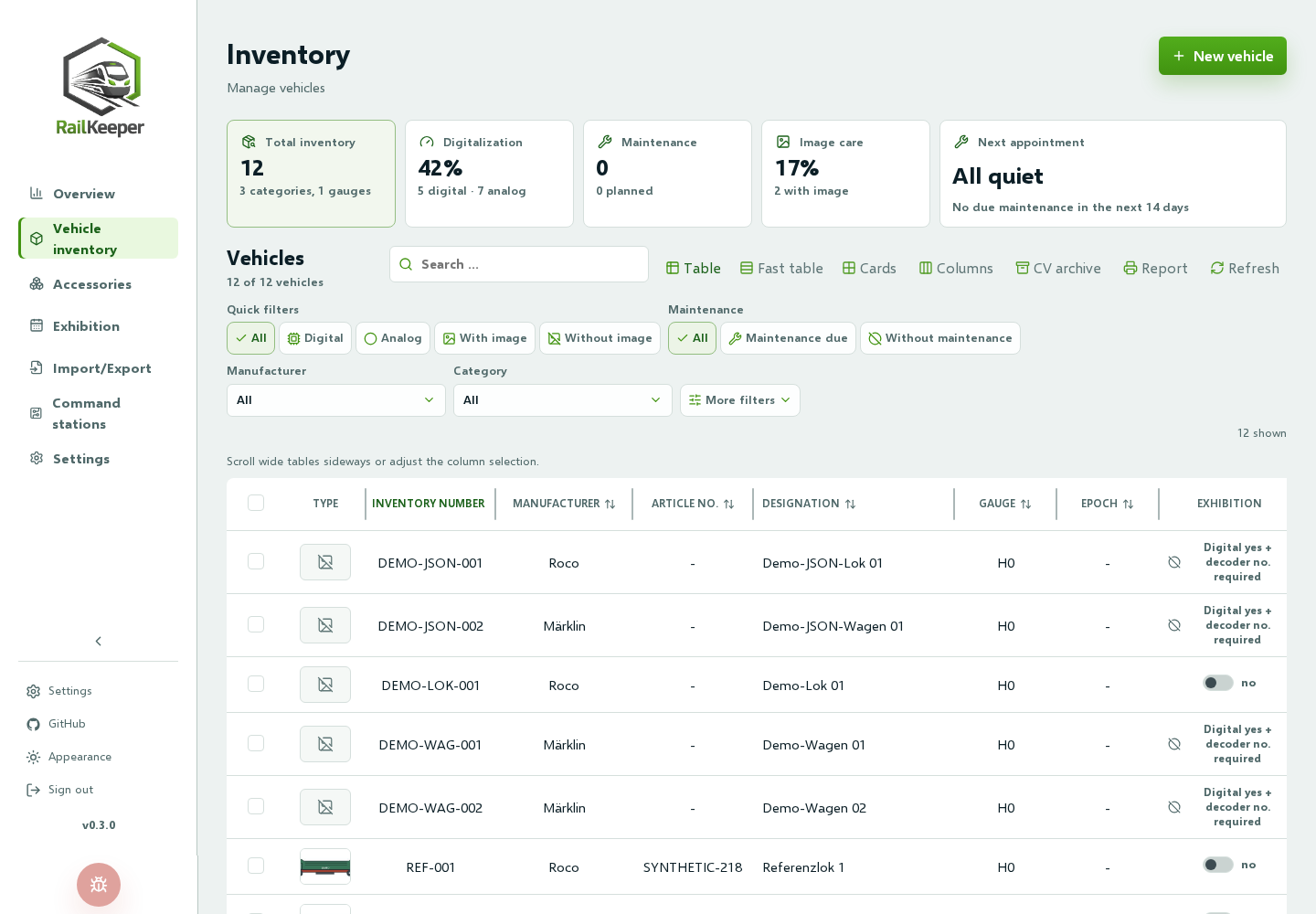
- Sign in again with the local test account if required.
- AFTER BACKUP must be absent; the locomotive and set must be present.
- Check all 144 CVs, index pages and provenance.
- Open F0/F1/F3 and their saved source evidence.
- Open the full-size picture and inspect maintenance.
- Export a new backup and validate that file too.
Actual export, validation and restore actions were exercised in the isolated demo in both languages. The verified full server-backup procedure is documented separately. The demo exercise does not establish Windows/Docker migration acceptance.
Recognize an incompatible file
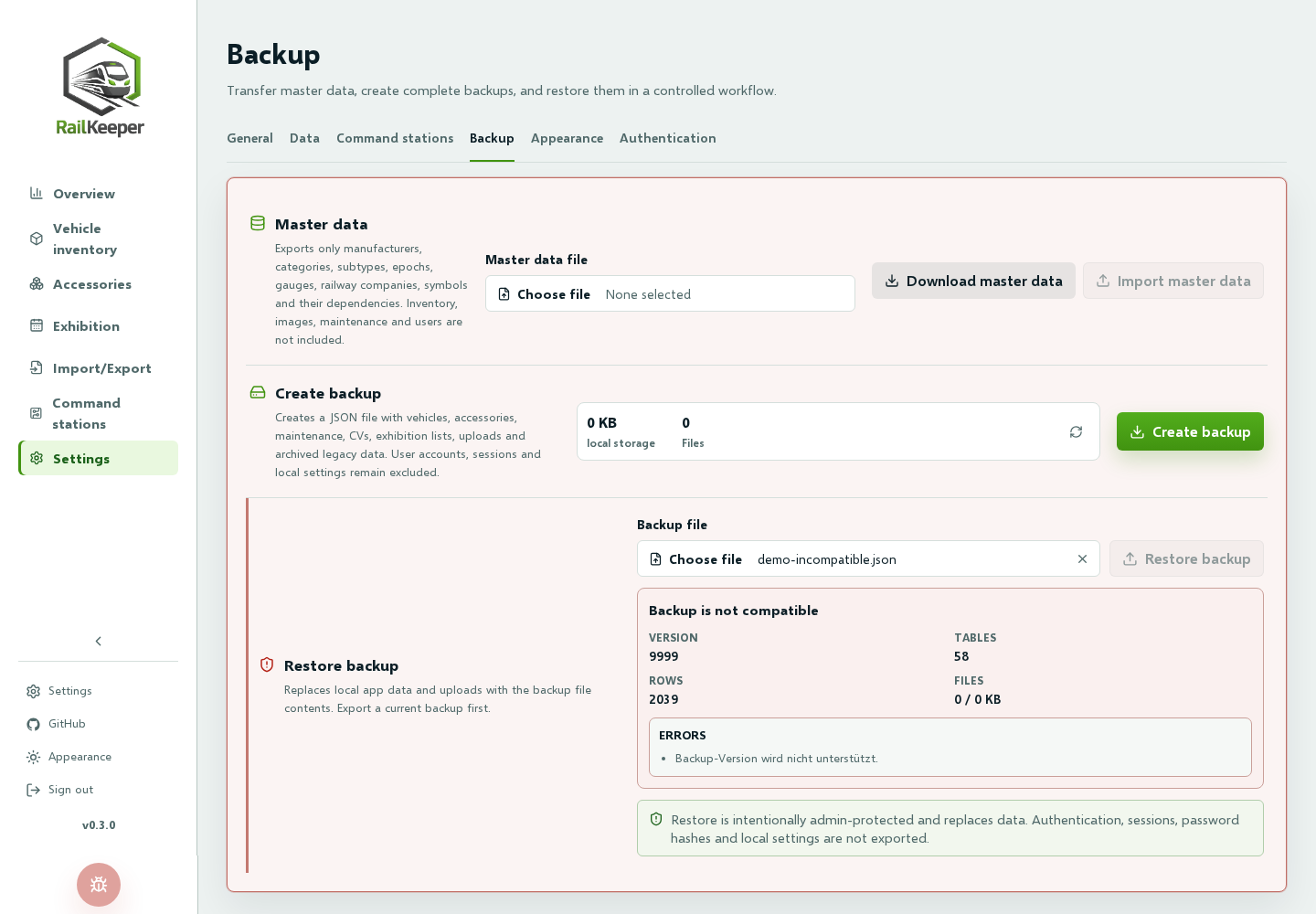
An unsupported version keeps Restore backup disabled. Obtain a suitable RailKeeper version or the correct backup. Do not edit real backup version numbers to bypass validation. Corrupt or incomplete files also need investigation.
Which backup do I need? · Checks before and after updates
Files: 0 does not imply missing images: current storage also keeps media inside database tables included in the backup. Verify the actual opened image after restore.