
Your first vehicle
Goal: Add a locomotive or coach and find it again later. You do not need a command station or CV file yet. Sign in with an Admin or Editor account. Viewer accounts can browse inventory.
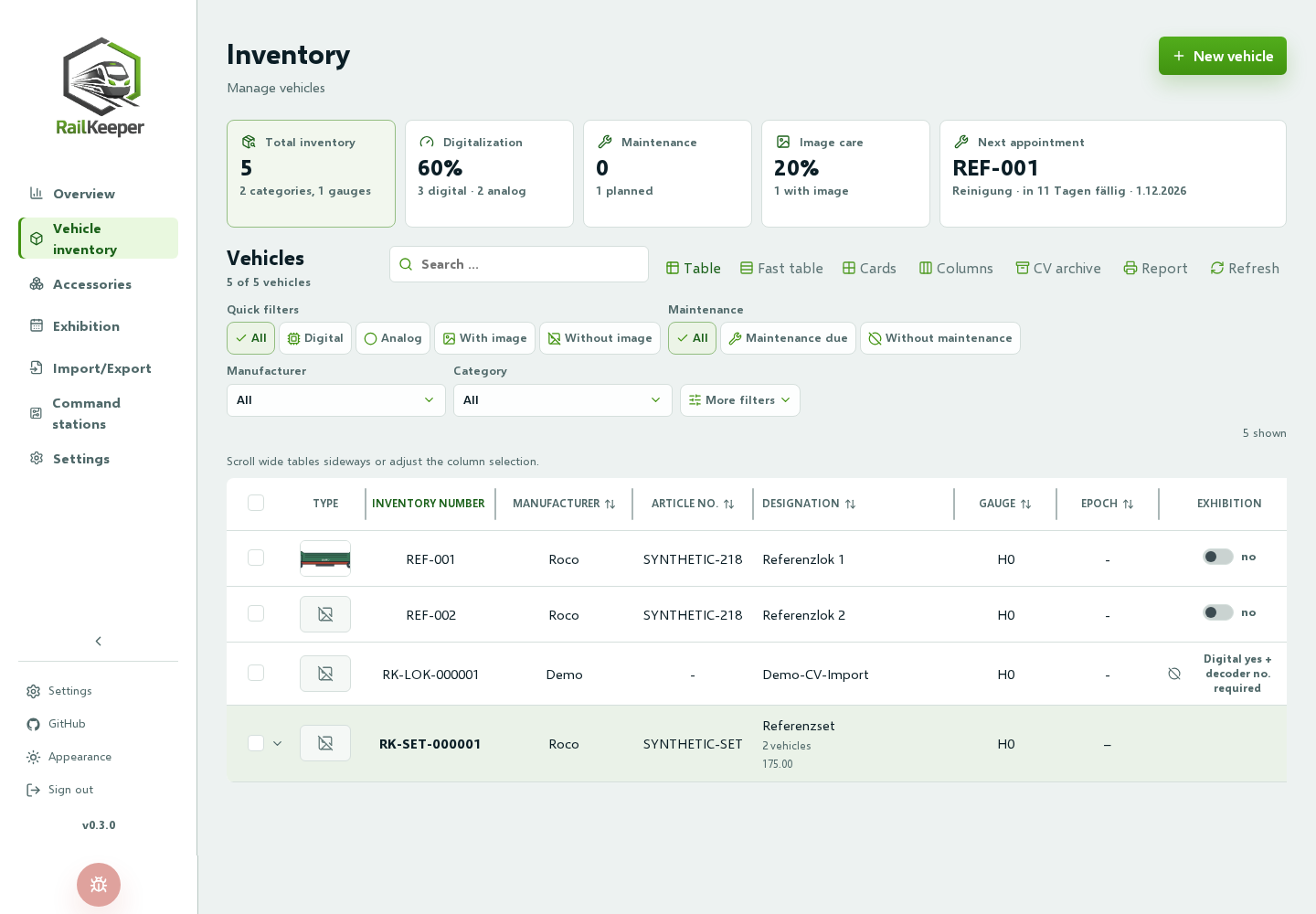
1. Open RailKeeper
Open the address of your installation in a browser. This address was chosen during installation. If you see Initial setup, create the administrator account first. If you see Sign in, use an existing account. RailKeeper has no default password. Sign-in help.
2. Add a locomotive or coach
- Open Vehicle inventory in the sidebar.
- Select New vehicle and the appropriate vehicle type.
- Enter manufacturer, name, and gauge. Choose the category and type that match the model.
- Choose Continue to article data, then continue to Vehicle details with or without a search. Enter the details you know.
- Select Create. Use Save changes for later edits. RailKeeper assigns an inventory number using the configured scheme.
Result: Your vehicle appears in inventory. If numbering is unavailable, an Admin or Editor can check the matching inventory-number scheme under Settings > General > Inventory numbers. All vehicle fields.
3. Find the vehicle again
Search inventory by name, inventory number, or article number. Open the detail view to look up information, or Edit to change it. An active filter can hide vehicles; clear it if a saved vehicle seems to have disappeared.
4. Add more information when you need it
| You want to … | Continue here |
|---|---|
| attach a photo and manual | Images and attachments |
| group coaches supplied in one box | Vehicle sets |
| import and understand decoder values | Decoder and CV data |
| name a function key or choose its symbol | Functions |
| schedule maintenance | Maintenance and condition |
| compare data from a command station | ECoS comparison |
| back up inventory | Backup and restore |
Before entering more records
Ask the operator to create an initial backup. An inventory export and a full application backup serve different purposes. The backup guide explains both backup and recovery.
Handbook pictures use synthetic demonstration data. Their names and CV values are not factory settings or purchasing recommendations.