Locomotive images for a command station
Goal: Prepare a vehicle picture for your command station and optionally assign it directly to an ECoS locomotive. The original picture is retained. Direct transfer requires Admin; Admin and Editor can maintain vehicle pictures.
These captures show the actual RailKeeper interface and a synthetic locomotive drawing. Station replies in the ECoS preview, pause and result pictures are simulated. They explain the workflow and do not establish additional hardware acceptance.
1. Choose a suitable picture
Open a saved vehicle under Edit > Uploads and add a vehicle picture. A side view with a calm background works well. Keep the whole locomotive visible and leave little unused space. Enlarging cannot repair an unsuitable perspective or a blurred photograph.
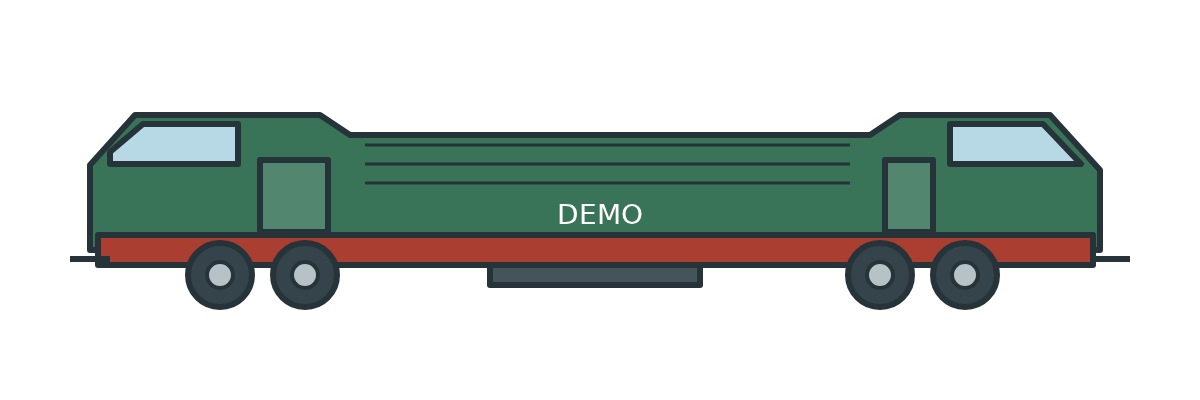
Try these synthetic image files:
- Demo locomotive at sufficient resolution (1200 × 400 pixels).
- Low-resolution demo locomotive (40 × 14 pixels).

On the chosen vehicle picture, select Create command station image.
2. Set target, crop and background
Choose Target device / application. For Admins preparing a saved vehicle image, the configured station is preselected. The crop is on the left and the enlarged Result on the right. Show 1:1 switches to the actual output size. Expand the line below the target selection for format details and manufacturer sources.
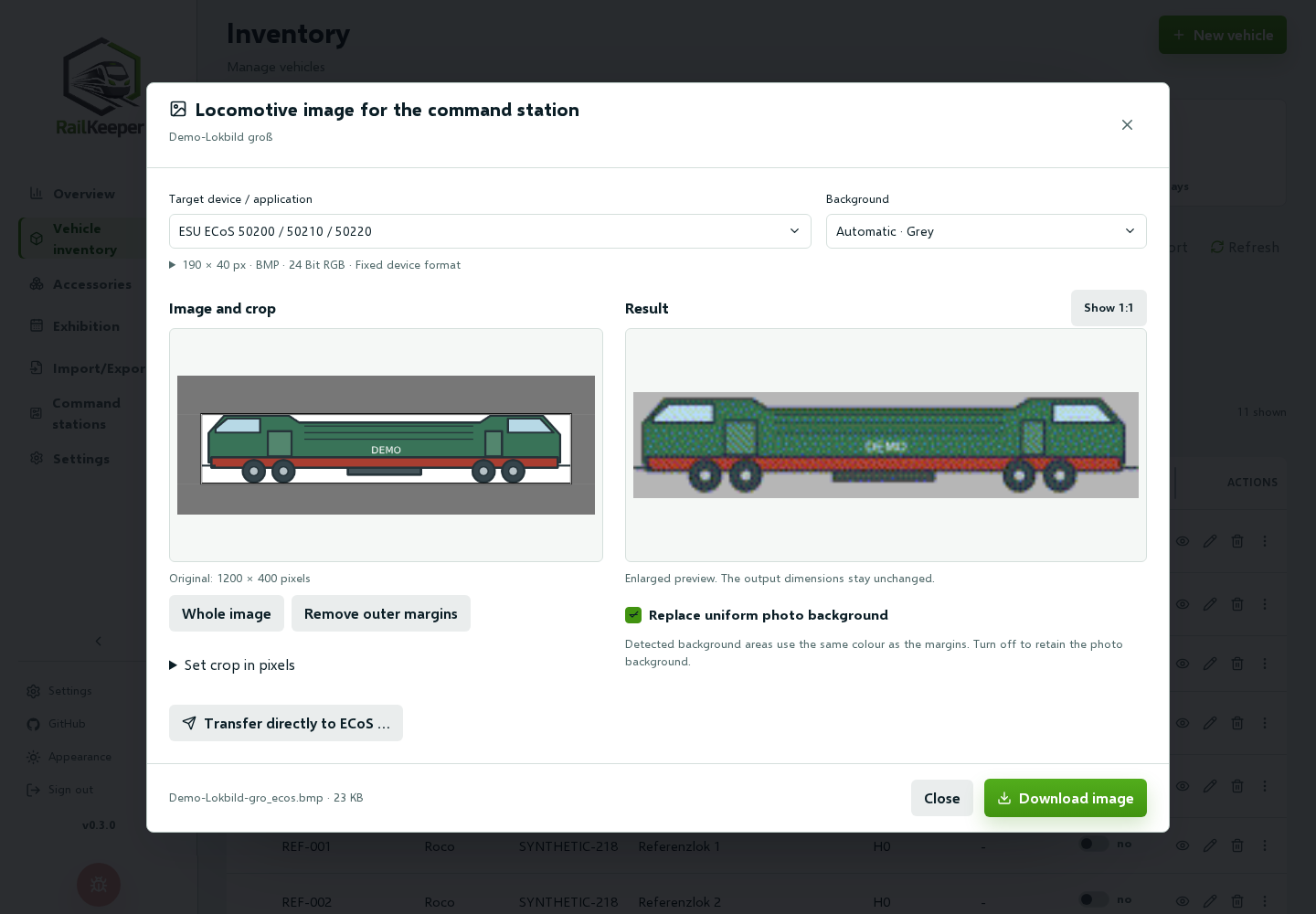
- Check the suggested crop.
- Use Remove outer margins when uniform empty borders get in the way.
- Drag a new crop with mouse or touch if needed. Use Set crop in pixels for precise values. Whole image resets the selection.
- Keep buffers, wheels and roof details visible while using as much width as possible.
- Automatic selects the target background: grey for ECoS, transparent for CS3/Intellibox 3 and white for the Z21 app. You can still choose another colour.
- Replace uniform photo background changes detected background areas connected to the image edge to this colour. Turn it off to retain the photo background. Ambiguous backgrounds are retained. The stored original always stays unchanged.
RailKeeper scales within the target dimensions while preserving proportions. A tall subject cannot fill the full width and remain entirely visible at the same time. Improve the photograph or crop rather than stretching the locomotive.
| Target | Output and next step |
|---|---|
| ECoS 50200 / 50210 / 50220 | 190 × 40 pixels, 24-bit RGB BMP; fixed device format. Import manually or use confirmed direct transfer. |
| CS3 / CS3 plus | PNG, RailKeeper preset 384 × 132 pixels; import through the CS3 web interface. |
| Intellibox 3 | PNG, 340 × 72 preset; process and transfer using IB3 Configuration. |
| Z21 app | PNG, 960 × 400 preset; save on the mobile device and select for the vehicle in the app. |
PNG presets are not universal manufacturer limits. The Z21 station itself does not store these app pictures. Manufacturer information in the dialog links to the relevant source.
3. Automatic preparation
RailKeeper removes uniform outer margins, fits the image proportions into the device format and automatically checks image dimensions, crop and output. Invalid crops and unreadable images prevent output and display a specific error.
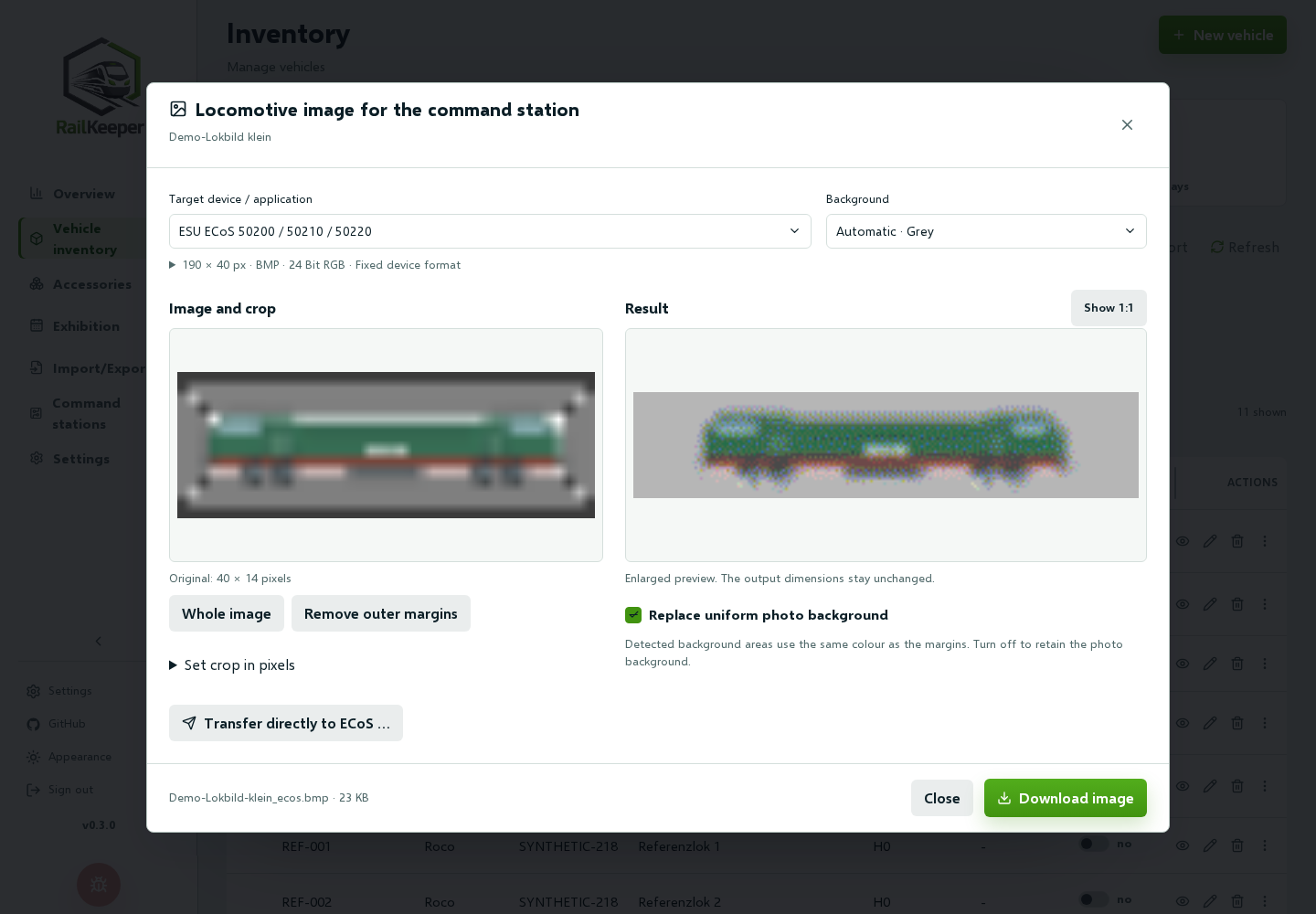
Use the larger original for sharp details. Scaling cannot repair perspective or blurred subject details.
4. Download and import manually
Select Download image. For ECoS, use the generated BMP rather than the original PNG. Open its web interface, go to locomotive images and upload to a free user-image slot. Then assign it to the correct locomotive on the ECoS. Uploading alone does not confirm assignment.
Use the table's workflow for CS3, Intellibox 3 and the Z21 app. The direct-transfer procedure below is available only for ECoS.
5. Transfer directly to ECoS
The ECoS must be configured and reachable. The protocol connection needs TCP port 15471; image transfer also needs its web interface on port 80, both reachable from the RailKeeper server.
- Select Transfer directly to ECoS ….
- Choose the Target locomotive on ECoS. Check name, decoder address, protocol and object ID.
- Review the description, then select Check transfer and load preview.
- Compare the current and new pictures and the chosen slot. This preview does not upload a new picture yet.
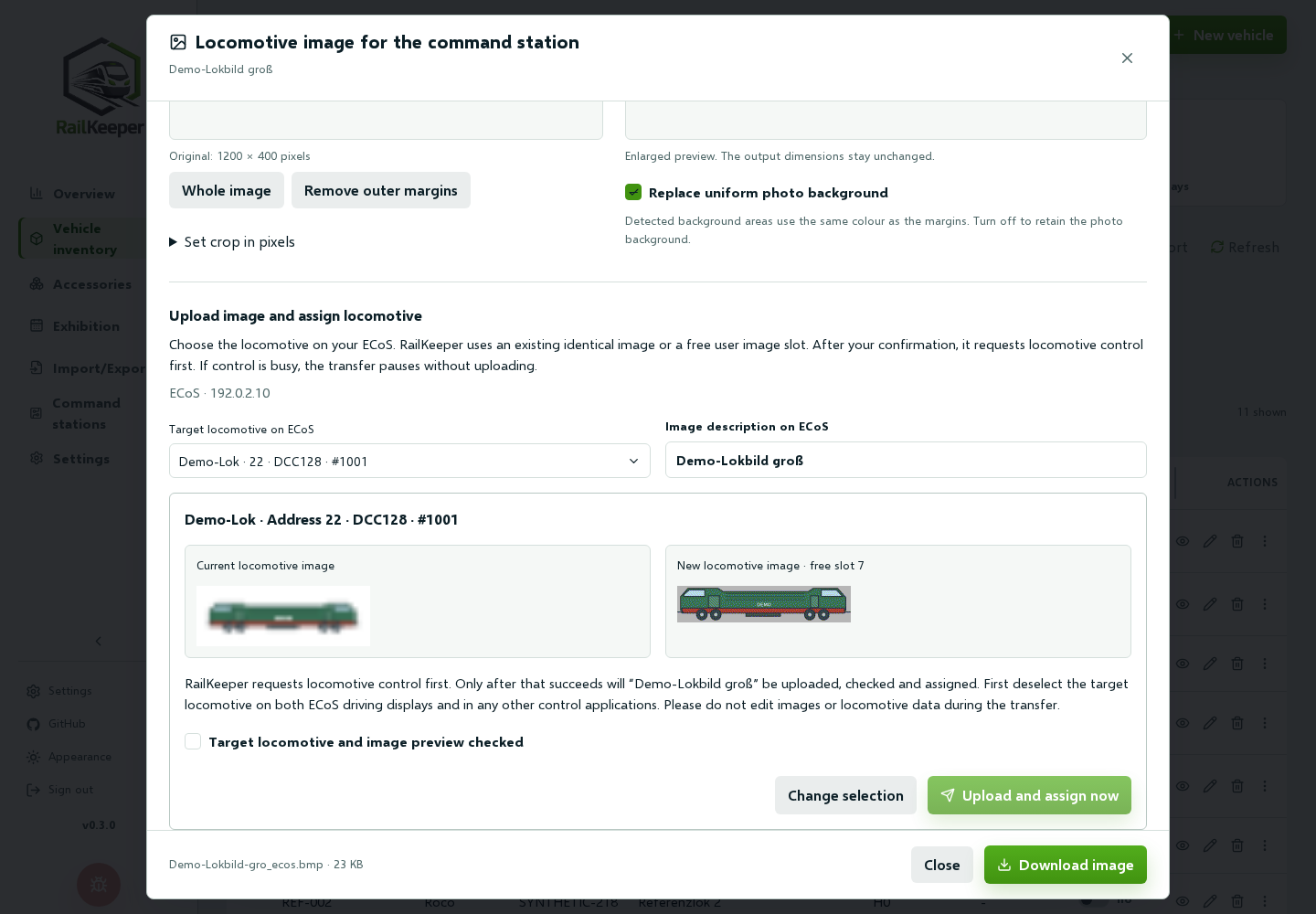
- Deselect the target on both ECoS driving displays and in other control applications.
- Check Target locomotive and image preview checked, then select Upload and assign now.
- Wait for the result. RailKeeper requests locomotive control first, then verifies the picture and assignment by reading them back after transfer.
If an identical picture already exists, the preview shows its slot and offers Assign existing image now. It does not upload a second picture. The existing ECoS description is retained.
6. Resume when locomotive control is busy
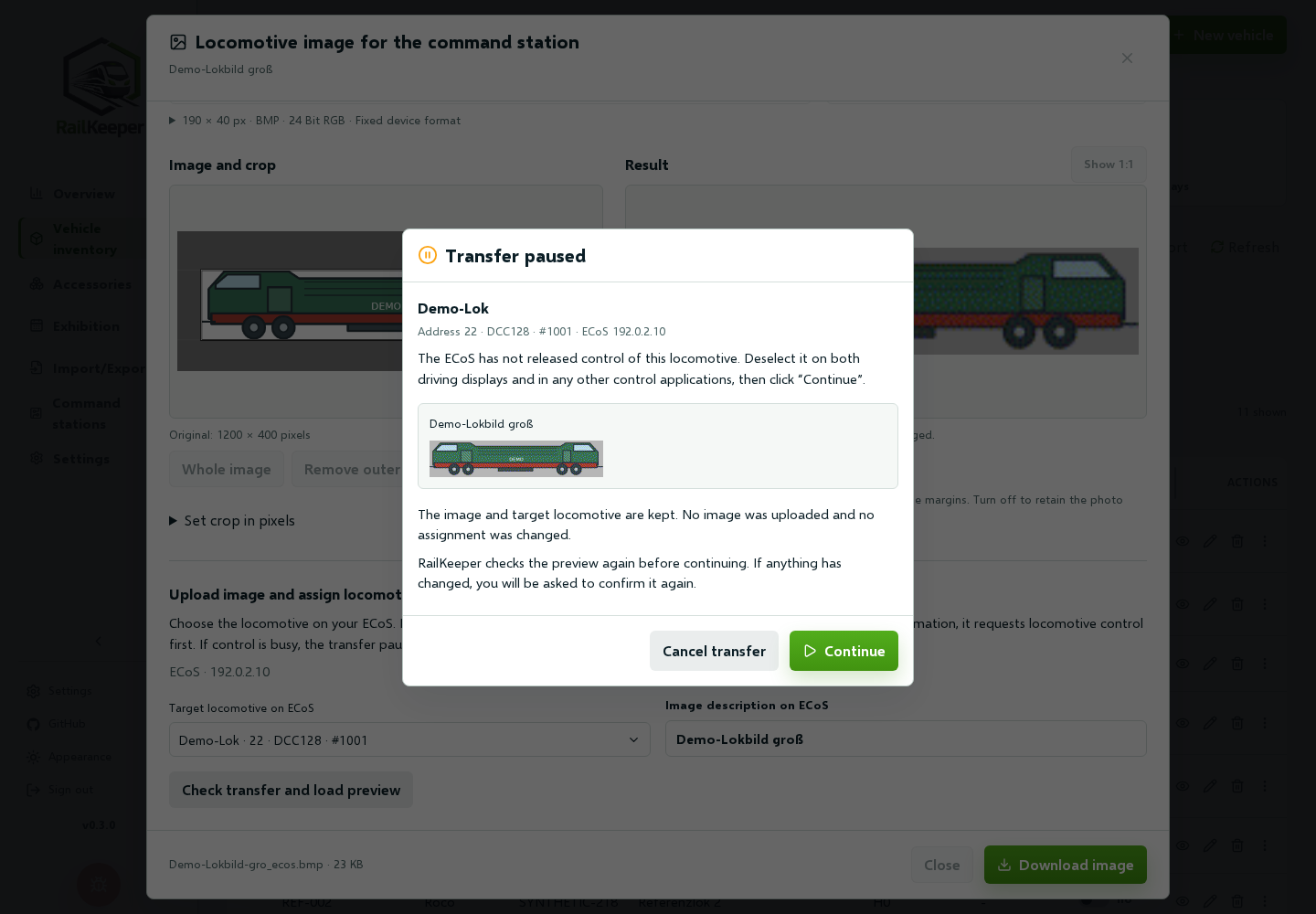
Deselect the locomotive on both driving displays and in other control applications. Then deliberately select Continue. RailKeeper checks a fresh preview and continues the previously confirmed operation if target, image and slot are unchanged. Changes require another preview confirmation. It does not force locomotive-control takeover.
7. Check the outcome and handle uncertain replies
| Notice | Next step |
|---|---|
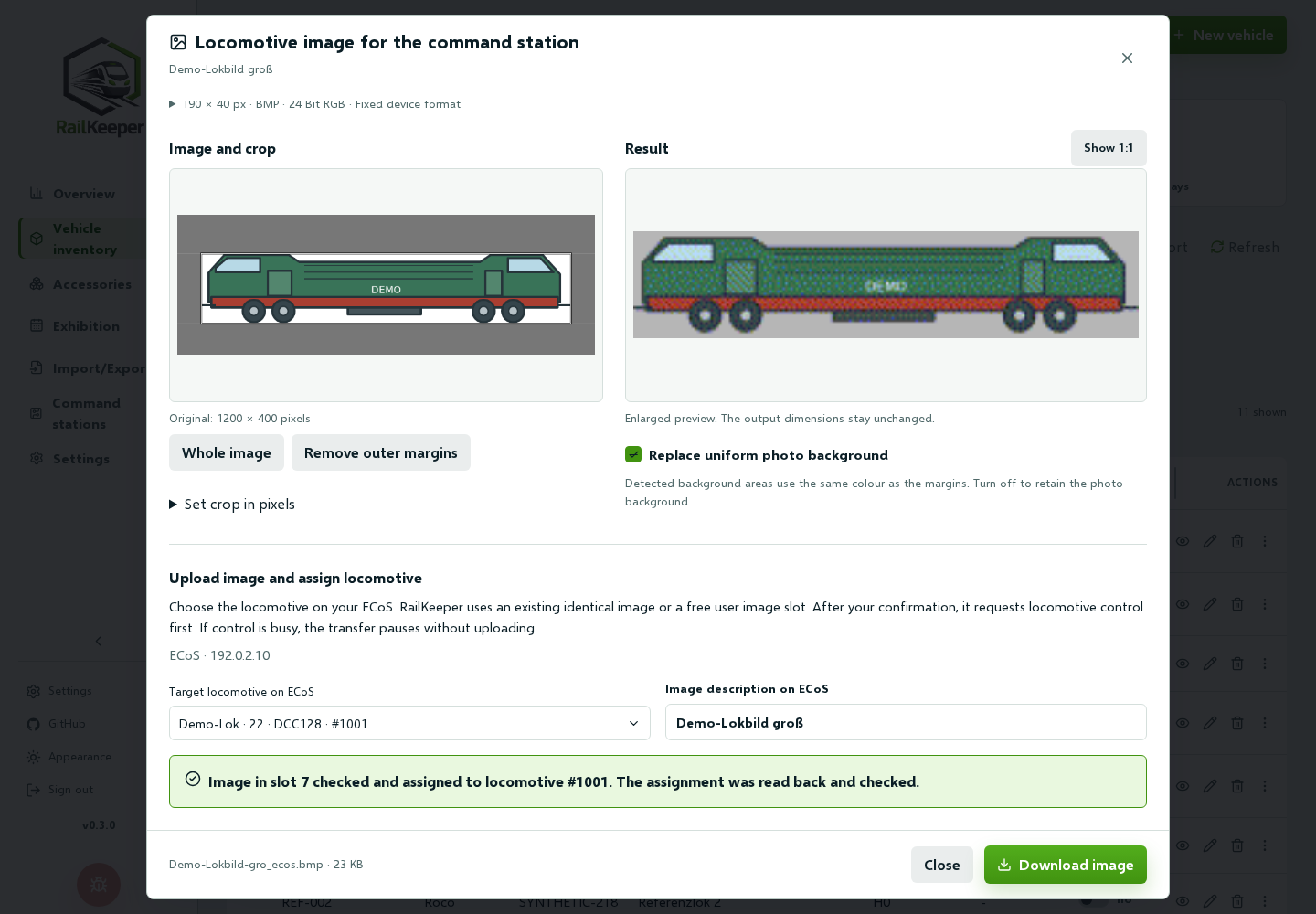
| Picture and assignment verified | Also check the picture on the ECoS. |
| Web interface unreachable | Check address, port 80 and reachability from the RailKeeper server. A successful protocol test alone is insufficient. |
| Preview expired or changed | Review again and confirm the current preview deliberately. |
| Picture verified, assignment unconfirmed | Check the slot and locomotive on ECoS. If offered, recheck only the assignment and reuse the existing image. |
| Missing reply or uncertain state | Do not blindly upload again. Check the image slot and locomotive assignment first. |
A late assignment failure does not automatically roll back an earlier upload. Keep the downloaded file until the outcome is established.