
Backup and restore
Goal: Protect your collection from data loss. This page requires the Admin role.
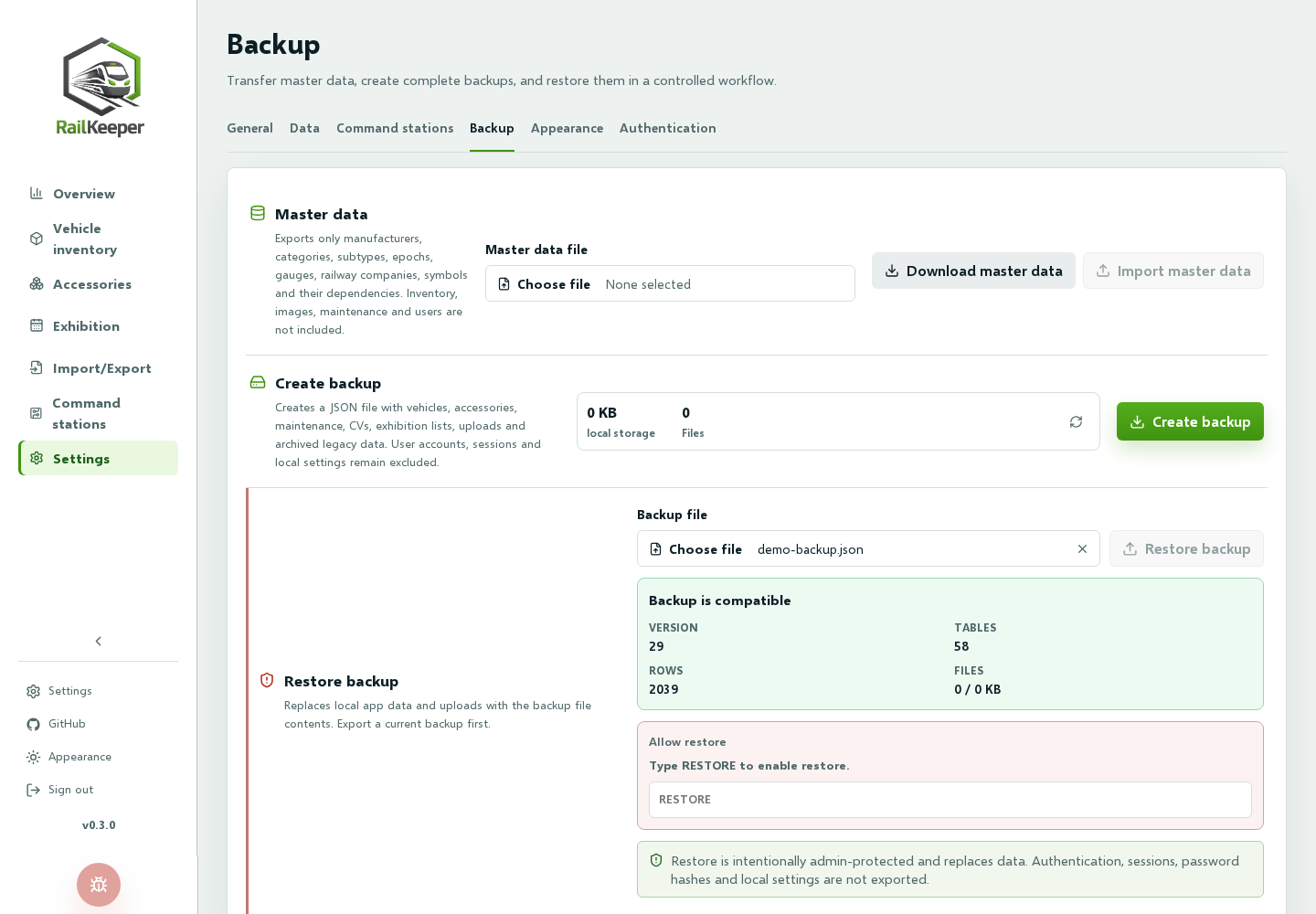
Create an application backup
- Open Settings > Backup.
- Select Create backup in the matching section.
- Keep the downloaded JSON file in a second storage location.
- Before updating, check that a current backup exists.
Application backups include inventory, accessories, maintenance, CVs and provenance, master data, exhibition data, and saved media. They exclude user accounts, passwords, sessions, and local system settings. They are not full server backups.
Original files can be stored as SQLite blobs in the backed-up records. Preflight counts only separate upload files under Files. 0 files therefore does not mean that images, attachments or decoder sources are missing. Open the originals on their vehicle after restoring.
Format 29 preserves accessory set contents. Restore checks component names and quantities before applying the backup. Articles from older backups start with an empty component list. Add components when the contents are known.
Format 28 adds dated manual vehicle valuations, retaining original entries, corrections, withdrawals, provenance and actual recording times. Preflight also checks relationships and correction chains before replacing data. Older backups remain readable and never fabricate valuation history.
Format 27 adds tables for physical decoders, installations, CV working groups and immutable partial states with frozen sources. Unknown installation dates stay unknown; recording time is not a readout time. Frozen sources remain available after the original CV file is removed. This schema extension adopts existing legacy groups once during startup or restore, without guessing hardware identity. Previously captured states are not rewritten. Original files come from the backup's upload area; references to other local directories are rejected before destructive restore.
Like format 26, it preserves article revisions, vehicle/set relationships, individual catalog overrides and the original assignment mode. Restore retains unresolved catalog proposals. Active article fields must match the saved vehicle representation. Older supported backups, including format 26, remain readable. An older program cannot fully restore the new format; never lower the format number manually. Before a data-model migration, also retain a consistent full installation and its matching previous program. Once new input exists, that older copy cannot provide a lossless rollback.
Check a backup first
- Select the backup file under Restore backup.
- Wait for validation. Check its date, format, row count, warnings, and errors.
- If you only wanted to check the file, stop here. Selecting a file alone does not restore anything.
Deliberately restore data
Back up the current state first
Restore replaces local application data and saved media with the file's contents. Save the current inventory first. Accounts in the file do not replace the installation's local sign-in data.
- Select a compatible file and read its validation result.
- Type RESTORE in the confirmation field.
- Select Restore backup and confirm the prompt.
- Afterwards, check vehicles, CVs, pictures, and important master data.
Which backup do I need?
| File or copy | Purpose |
|---|---|
| inventory export | exchanging tables and records, not a complete recovery state |
| application backup | moving or restoring app data between compatible installations |
| full filesystem/volume backup | server failure recovery and returning to an earlier installation, including private local data |
A copy inside the same container cannot protect against losing that container. Operators back up the database and file storage consistently and keep a copy off the system. Updates and operation.
Illustrated JSON application-backup exercise · Restore a full private server backup separately.