
Updates and operation
Goal: Change versions and verify that inventory and files remain complete. Use a separate test installation for your first exercise.
1. Record version and data location
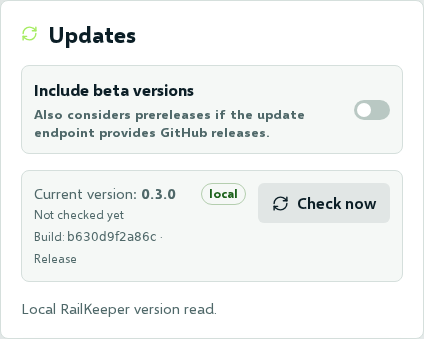
Open Settings > General > Updates and record the current version. A published release may differ from the main development branch. An offered download does not install the update automatically.
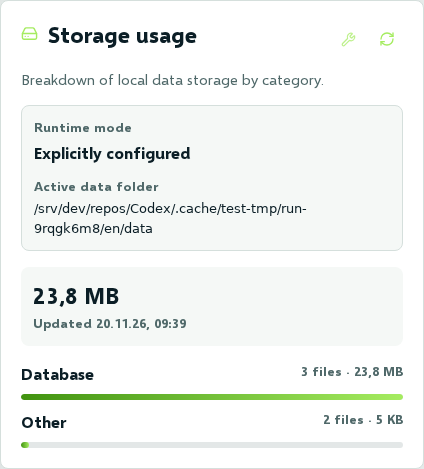
On the same settings page, open Storage usage. As Admin, record the active data path and storage mode. Also check the actual startup or Compose configuration.
2. Back up before replacement
- Export an application backup and keep it outside the installation.
- Validate the file without restoring it. A restore exercise on a second installation helps establish the recovery procedure.
- Also take a consistent copy of the complete data directory or volume, including local authentication and configuration. Stop the application or use a suitable consistent snapshot.
- Record startup options, public URL, port, image tag or ZIP version.
- Read target release notes and plan downtime without simultaneous edits.
3. Update Windows
Download the ZIP and checksums.txt from the same release. Run the following in PowerShell from the download folder. Use the GitHub CLI to verify the build attestation.
$tag = Read-Host 'Release tag (including v)'
$zip = "RailKeeper-windows-x64-$tag.zip"
$checksum = @(Get-Content -LiteralPath .\checksums.txt |
    Where-Object { $_ -cmatch ('^[0-9a-f]{64}  ' + [regex]::Escape($zip) + '$') })
$hash = (Get-FileHash -LiteralPath $zip -Algorithm SHA256).Hash.ToLowerInvariant()
if ($checksum.Count -ne 1 -or $checksum[0] -cne "$hash  $zip") {
    throw 'SHA-256 check failed.'
}
gh attestation verify $zip --repo ichwars/RailKeeper `
    --signer-workflow ichwars/RailKeeper/.github/workflows/windows-standalone.yml `
    --source-ref "refs/tags/$tag" --deny-self-hosted-runners
if ($LASTEXITCODE -ne 0) { throw 'GitHub attestation verification failed.' }
Extract the ZIP after both checks pass. Older releases may predate these verification files and attestations.
| Step | Action | Check |
|---|---|---|
| Choose a package | Download the matching Windows-x64 ZIP from GitHub Releases | Intended version and architecture |
| Stop the application | Shut down RailKeeper, not just its browser tab | Old process is no longer running |
| Extract separately | Extract the entire ZIP into a new application directory | Startup file and bundled subdirectories are complete |
| Start | Open Start RailKeeper.exe in the new folder, or run start-railkeeper.bat for older packages | Browser shows the new version |
| Check data | Verify the same data path and storage mode | No accidental empty inventory |
The default data directory is %LOCALAPPDATA%\RailKeeper\data; explicit configuration or portable mode can differ. Keep the old application directory and backups. If old and new databases both exist, assess them separately. Do not merge their directories.
4. Update Docker
Work in the existing Compose configuration directory. Retain the data volume and environment. Check the image tag or digest before replacement:
docker compose config --images
docker compose pull
docker compose up -d
docker compose ps
docker compose logs --tail=100
Check configuration and log output for private information before sharing it. The automatic pre-migration safety copy resides inside the data directory and is not an external backup.
5. Recheck the same checkpoints
| Check | Expected result |
|---|---|
Version and /health | Intended version and successful health response |
| Authentication | Your existing local account works |
| Inventory and set | Known vehicles and members remain present |
| Picture and attachment | Actually open each, rather than counting thumbnails |
| CVs and functions | Readings, index pages, provenance and manual choices retained |
| Maintenance and master data | Known records remain present |
| New backup | Successful export and validation |
| Station, if used | Reachable from the RailKeeper server; start with a connection test |
For failures, record version, error and affected step. Check data path and logs. An older application is not automatically compatible with a migrated database. For rollback, restore the matching application, data and configuration snapshot together.
Evidence boundary: The UI and restore exercise were tested in the local demo. Instructions were checked against startup/migration code and the runbook; these pictures are not Windows or Docker update acceptance. Detailed runbook.