
Set up accounts and two-factor sign-in
Goal: Create an account with suitable access and verify its personal two-factor sign-in. User administration requires Admin. Personal password and two-factor settings apply to the signed-in account.
1. Create a separate test account
Open Settings > Authentication > User management > New user. Enter a unique username, suitable email and a personal password of at least twelve characters. Repeat the password and choose only required roles.
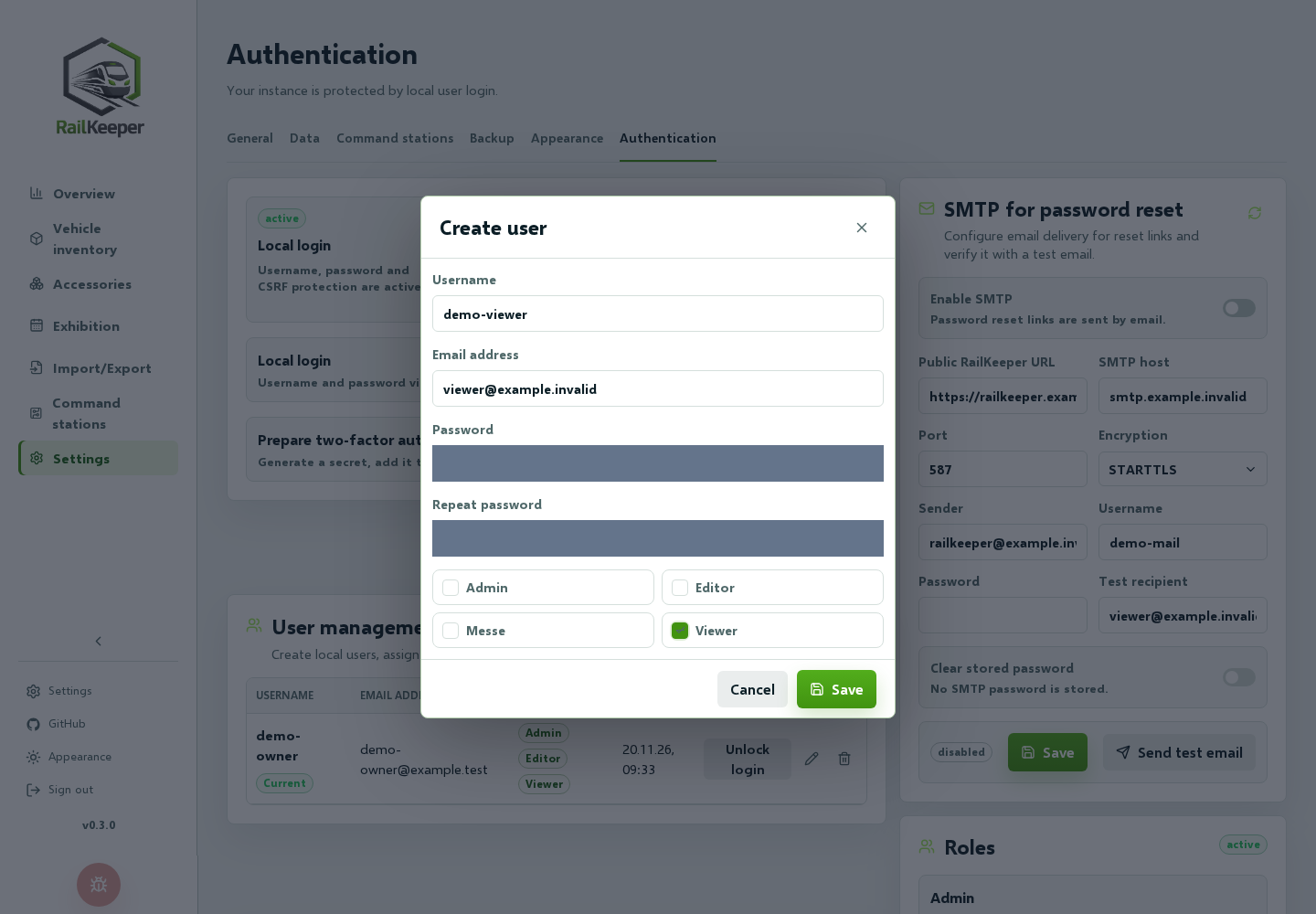
For the exercise, choose Viewer and Save. Sign in using a separate browser session. The account should read inventory and be unable to download an Admin backup. Both boundaries were actually checked in the demo.
| Task | Suitable role |
|---|---|
| Inspect inventory | Viewer |
| Maintain vehicles, accessories and CVs | Editor, optionally also Viewer |
| Operate existing events | Messe |
| Also plan events | Editor together with Messe |
| Manage users, backups and station writes | Admin |
A visible settings tab does not grant permission. The server checks each action. An earlier Planner description is not part of the current four-role model.
2. Prepare personal two-factor authentication
Sign in with the intended account and open Settings > Authentication. Use Prepare two-factor auth, then scan the QR code with your authenticator app or enter the secret there. Keep the authenticator app's recovery information protected.
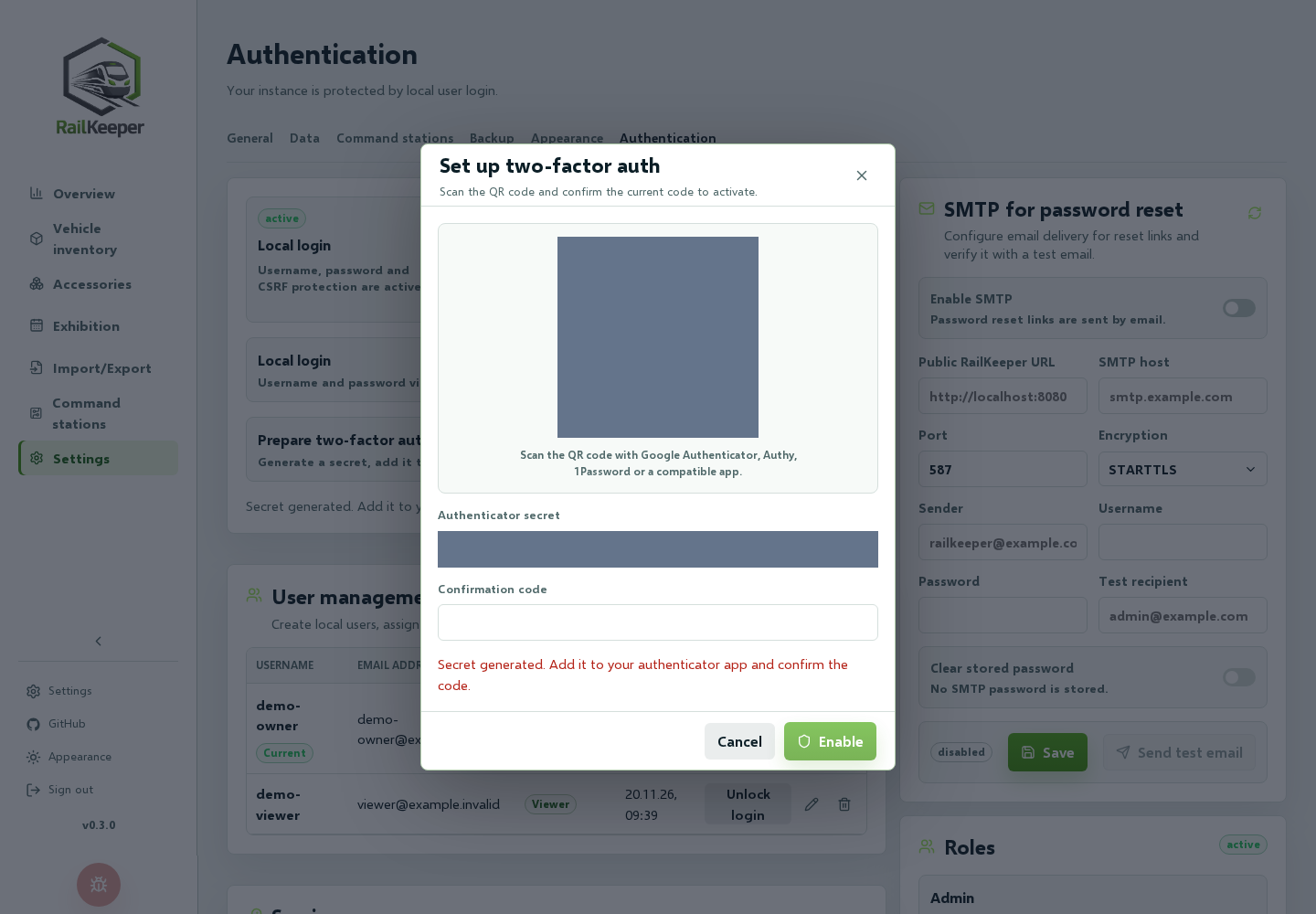
Enter its current six-digit code under Confirmation code, then select Enable. Only a valid code enables two-factor enforcement; opening preparation alone does not.
3. Verify a fresh sign-in
Keep the existing session open initially. In a private browser window, enter username and password and select Sign in. A Two-factor code is now required.
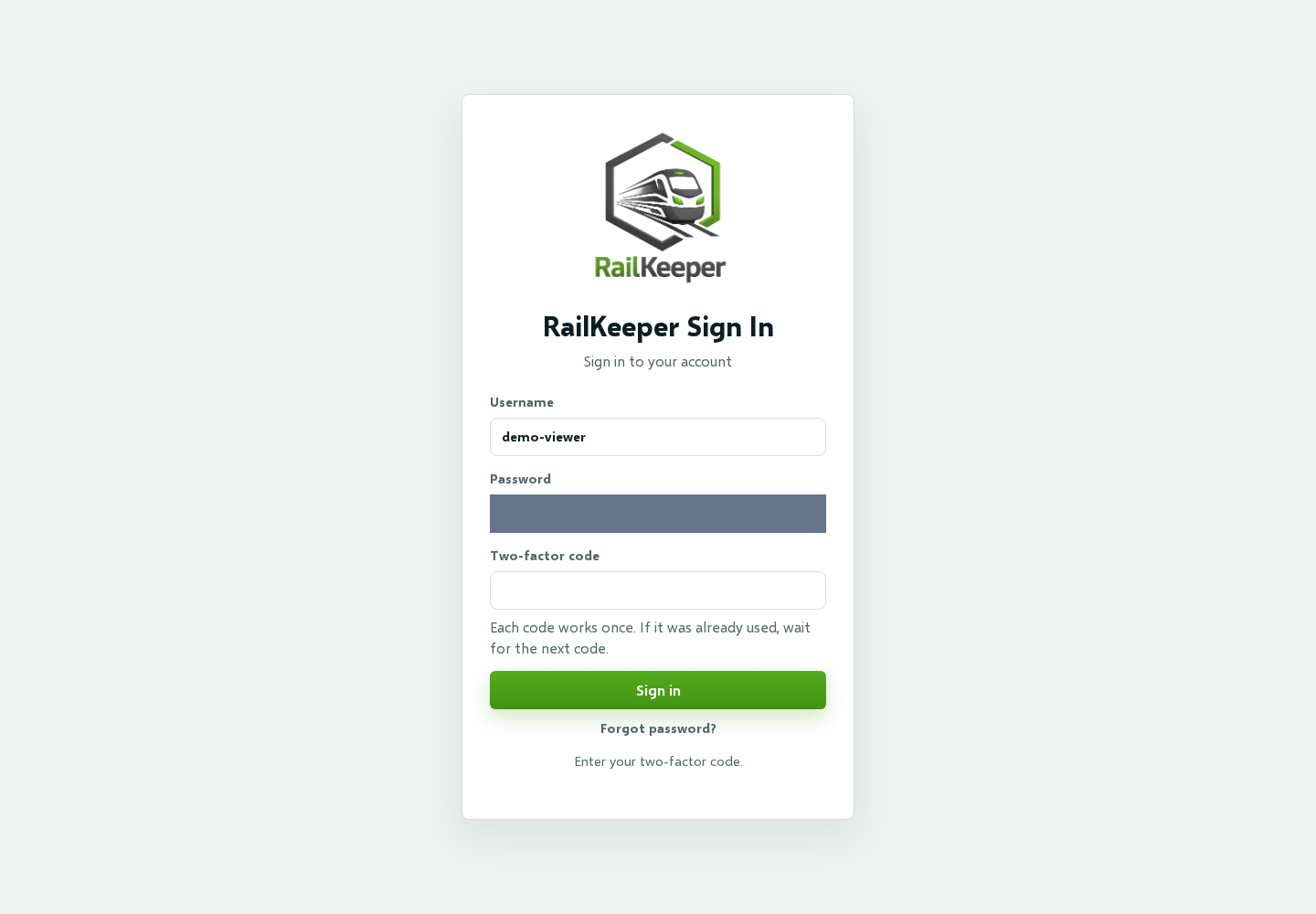
Enter the current code and check that the correct account opens with its existing roles. If rejected, check clock time and the correct authenticator account. Do not publish codes, QR images, secrets or session data in support discussions.
4. Understand disabling and recovery
Disabling requires your current password and, while two-factor authentication is active, a valid code. Other sessions of that account are revoked. Password reset does not automatically remove the two-factor requirement. This workflow supplies no separate RailKeeper list of one-time recovery codes.
Ensure authenticator data is recoverable before activation. Application backups contain no user accounts and cannot restore this secret. A full private server backup has a different recovery scope.
5. Review sessions
As Admin, inspect Authentication > Sessions and revoke an unneeded session deliberately. Check role changes using a fresh sign-in. Sign-in and forgotten passwords · Configure SMTP.