
Accounts and permissions
Goal: Give each person the appropriate access. An Admin manages accounts under Settings > Authentication.
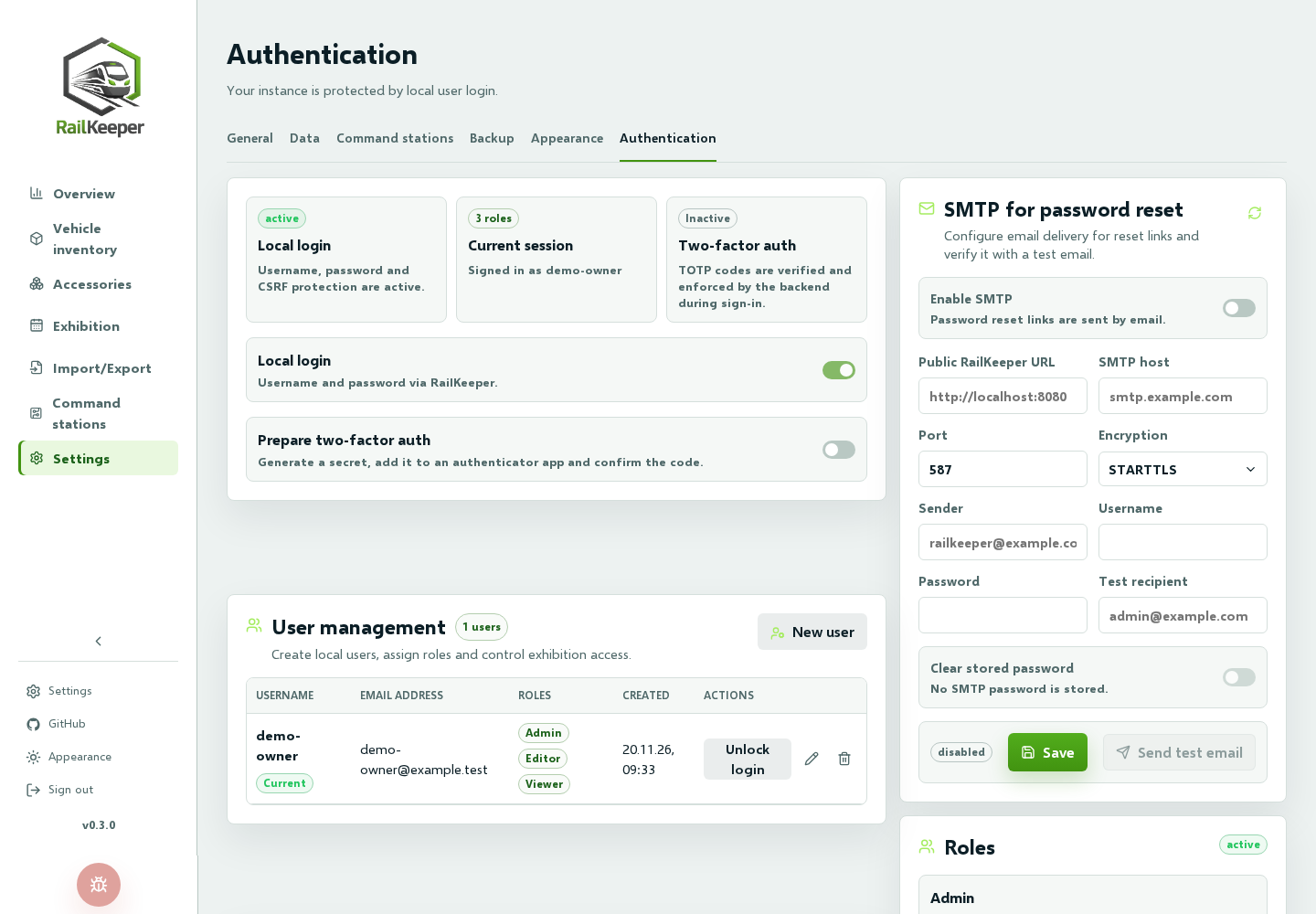
Add an account
- Open user management and choose the action for adding a user.
- Enter username, email, and a separate password.
- Select only the required roles.
- Save the account and check its sign-in separately from your own administrator account.
| Role | Intended use |
|---|---|
| Admin | manage the installation, accounts, backups, and protected command-station operations |
| Editor | add and edit inventory data |
| Viewer | browse inventory and use permitted outputs |
| Messe | use the allowed exhibition workspace |
Roles can be combined. Account roles determine which menus and actions are allowed; a visible link does not bypass server authorization.
Protect your account
Use the personal password and two-factor settings under Authentication. Set up an authenticator app and protect any required recovery information. Sign-in and forgotten passwords.
Lost or unfamiliar sessions
An Admin can inspect sessions and revoke those no longer needed. Password changes or administrative resets can invalidate existing sessions. After changing permissions, check access with a fresh sign-in to the affected account.
Application backups do not transfer users or sign-in credentials. Operators also need a private server backup for full installation recovery.
Illustrated account and two-factor exercise · SMTP and password reset.